
Step:1 Download the HST ova image and install the same using the url
Step:2 url – https://www.broadcom.com/support/oem/vmware-health-security-toolkit

Step:3 Post installation of HST ova VM – login via url to access the web UI
Step:4 login with option “customer login” using admin and pw that was set using while deployment of VM and click Login then(skip to step 7)
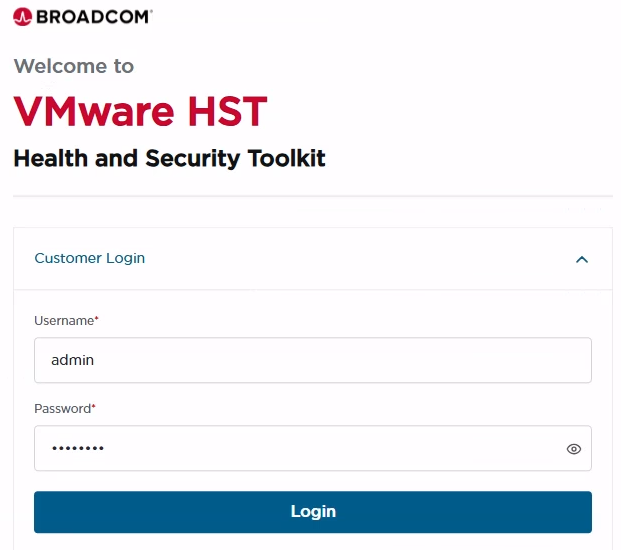
Step:4 Java Method
- Prereq – Install the Java plugin
- Download Java file and unzip to the folder

Step:5 Double-click the “HealthAndSecurityToolkit.jar”

Step:5a look for the status right now it is “Starting”

Step:5b wait till the status shows “Running” and click “Connect”

Step:6 Accept the url and login with the 3rd option to login using “registration key” and email id
Note: get registration key from pstool portal and raise a ticket with 1.support to get access to the user for their email id to work on the HA

Note: Three logins options are available admin is default login that customer can use to collect information
Note: 3rd option is offline login –>used to run Health analyser reports


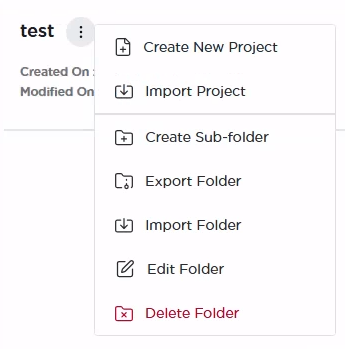
Step:7 Click “create New project”
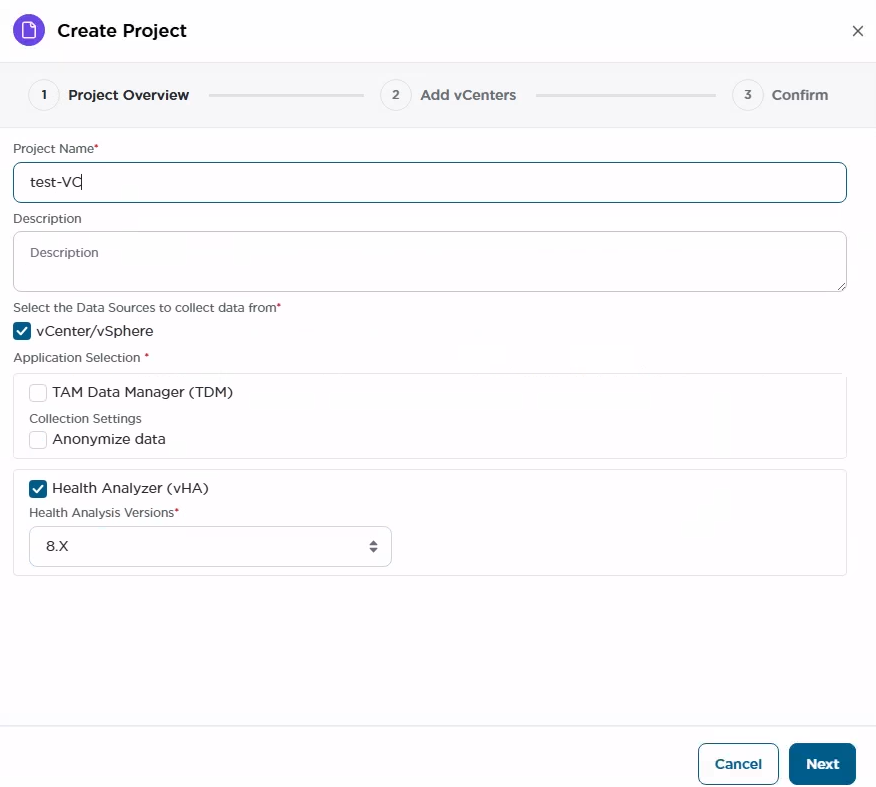
Step:8 Provide the details for “Project name” and check the box for Data source and check the box for Health Analyser (HA) along with 8.x in the drop down. (based on the vcenter version select 7/8)
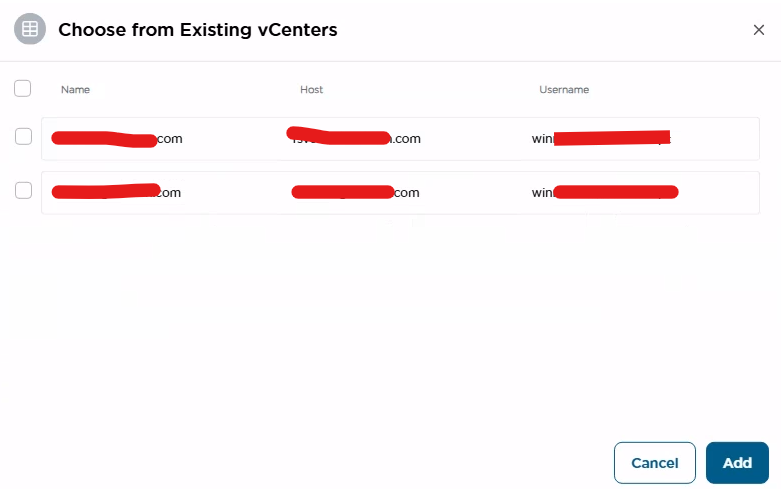
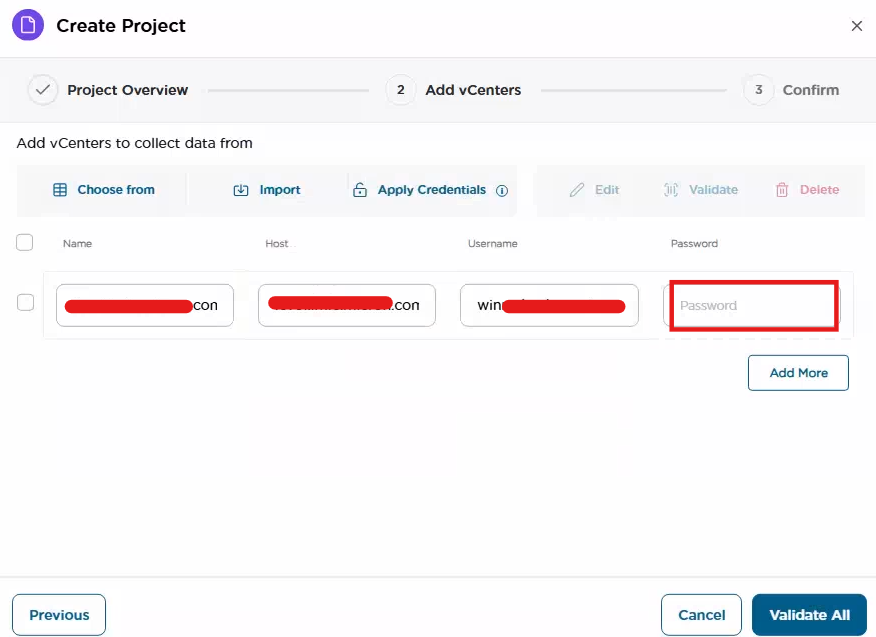
Step:9 Add vCenter details
Note: you can select the vCenter from the list.
Step:10 Provide the password and validate all
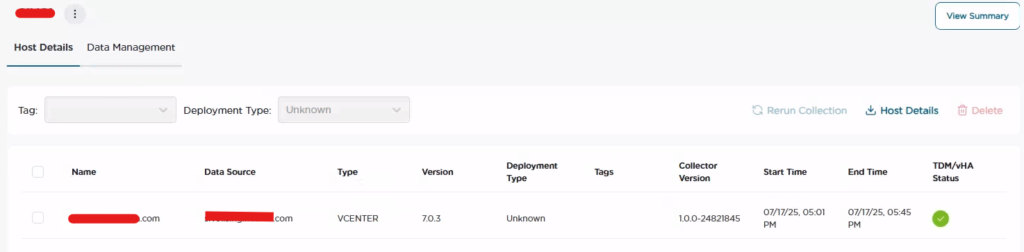
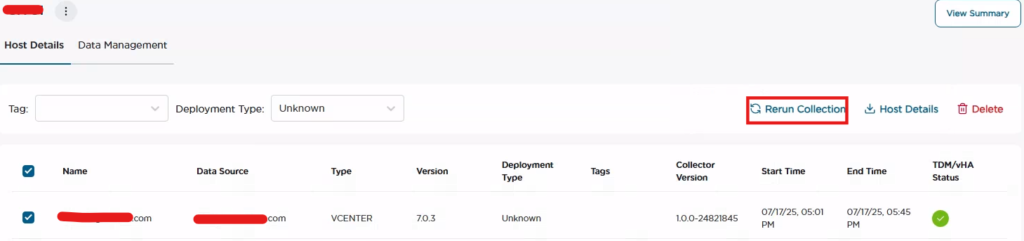
Step:11 re-run the collection and should see the HA status with green tick
Step:12 Click on Data management TAB under Project Report click “Excel Report”
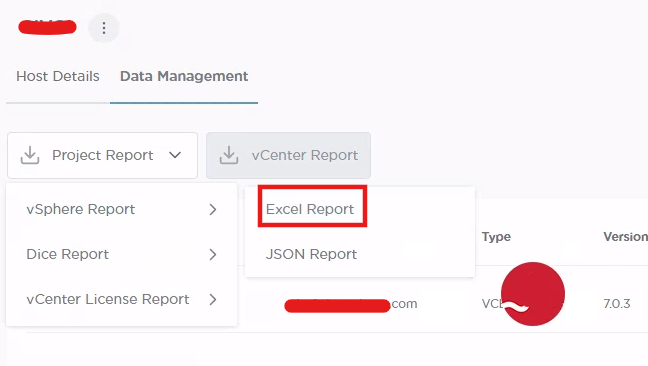
Step:13 verify download folder to review the report
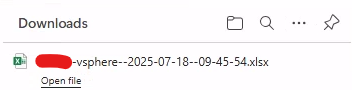
Step:14 click on the Data management > project report > dice report > Excel report
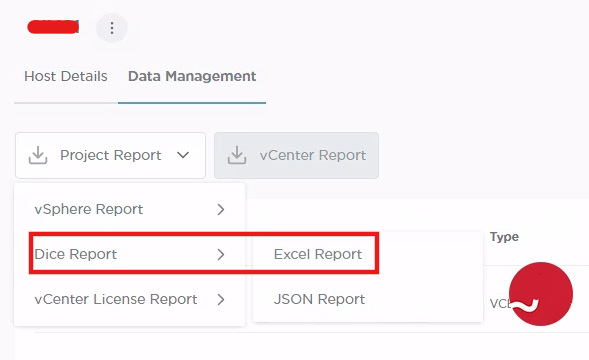
Step:15 Review the report

Step:16 Click on the Data management > project report > vcenter license report
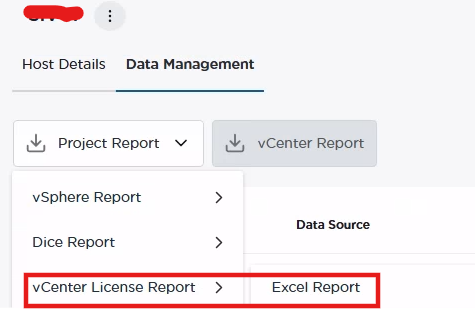
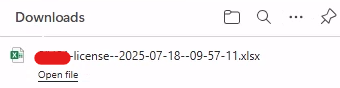
Step:17 Download and review the report
Step:18 Under “Health Analyser” TAB (this TAB is seen if we login using 3rd option with Registration key + Broadcom user email id)

Note: Sort by Priority and select every priority (P1/P2/P3) and click export to download the excel file.
eg: In the above screen, 6 P1 line items are seen so download 6 files


Note: using all the reports generated – collate all reports w.r.t to P1/P2/P3 as a powerpoint doc and present to customer
Thanks for reading 🙂